
Videosync Conference Call Feature
Last updated: July 1, 2025
Create a teleconference for event
In Videosync, you can create two different types of teleconference setups, depending on the purpose. If you’re working with a Web Studio, you can create a Web Studio setup following these instructions, which will enable teleconferencing with the web studio.
These teleconference links also work if you create the teleconference through Web Studio.
Before the event: Set up the Web Studio
Without a web studio, you can create a teleconference by going to Advanced Settings -> Teleconference Settings and auto-generating a teleconference bridge.
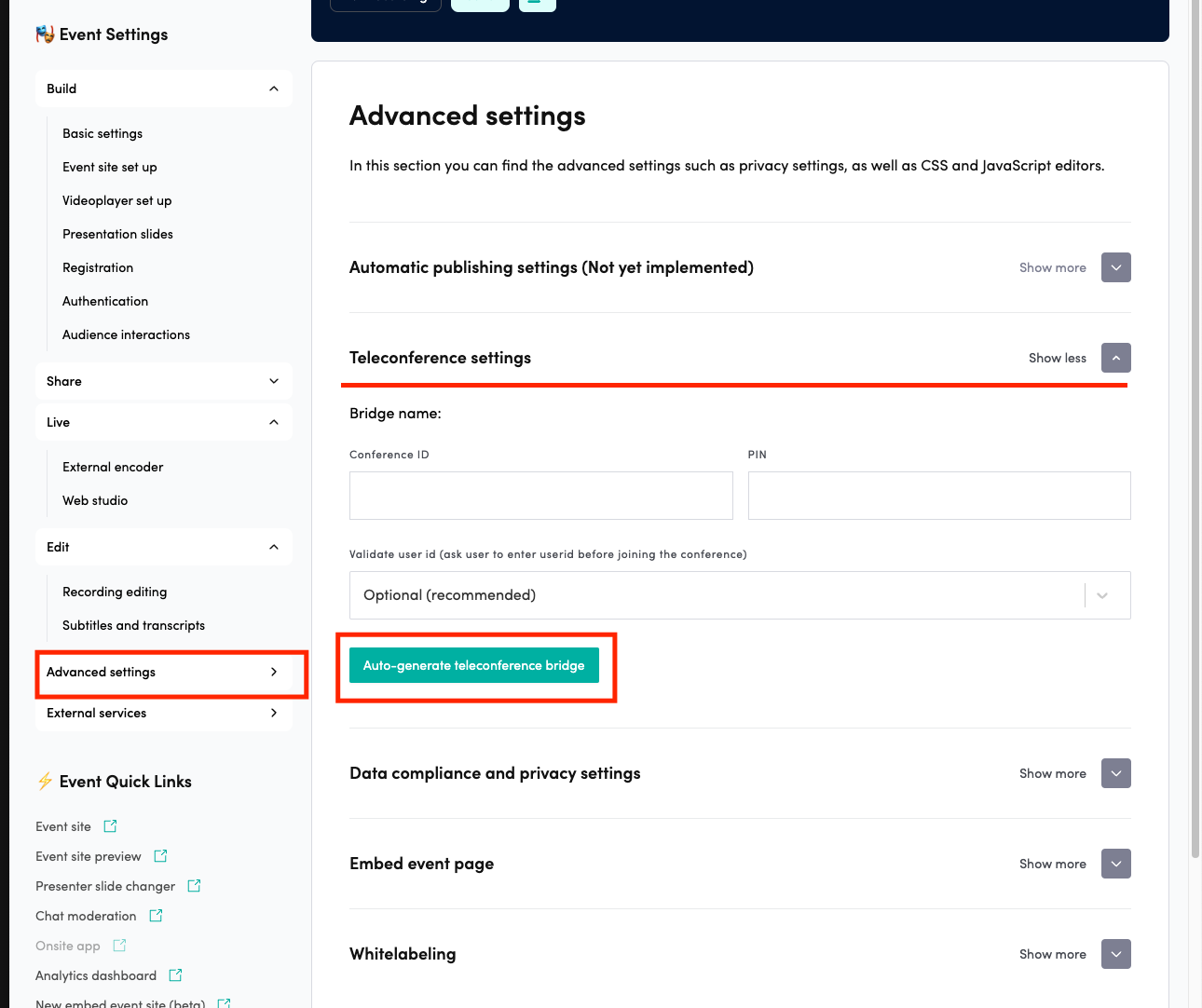
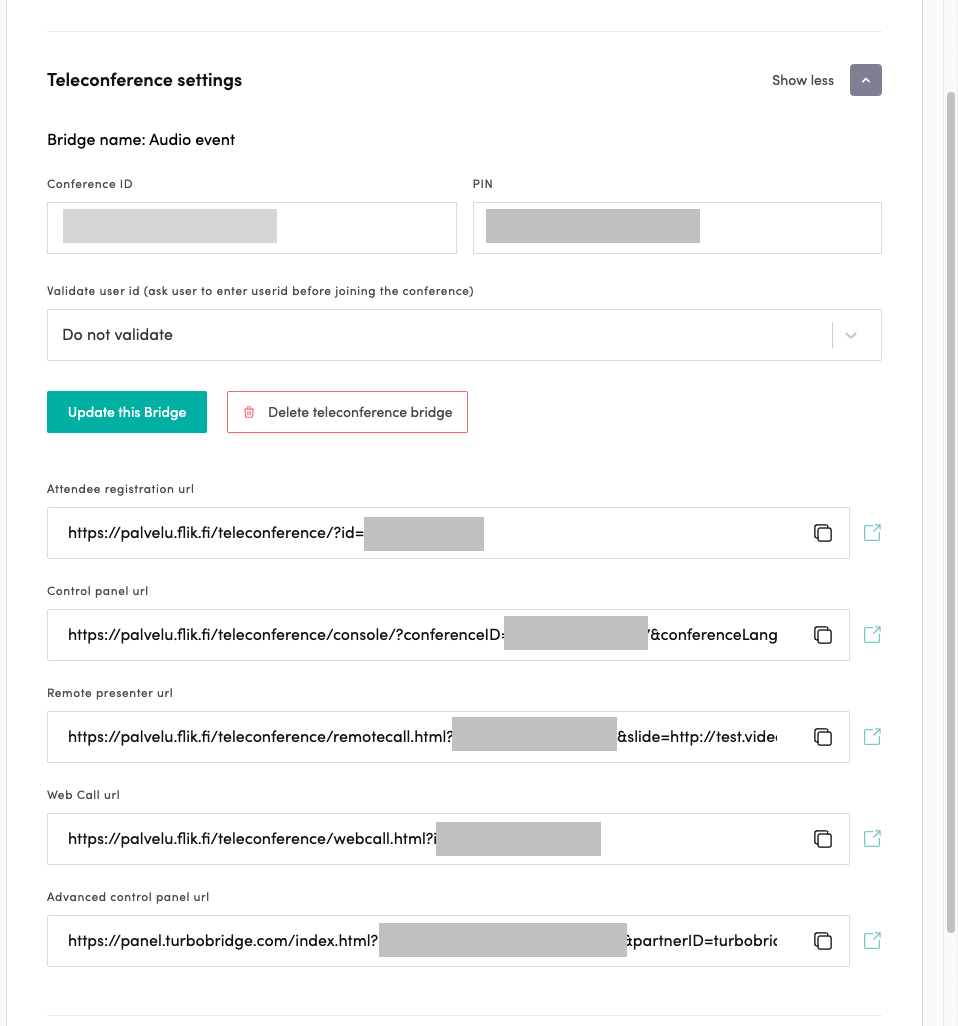
After auto-generating and saving, you will receive the links.
The Attendee Registration URL (new) is the link where users can register for the teleconference.
The Legacy Attendee Registration URL is the old link where users can register for the teleconference.
The control panel URL is the link for the operator, who can activate moderator controls and start/stop the recording.
The remote presenter URL is the link for speakers, where they can change slides and see the teleconference participants.
The Web Call URL is a way to join the teleconference through a browser as a participant.
The Advanced Control Panel URL is the link to TurboBridge’s control panel for advanced users.
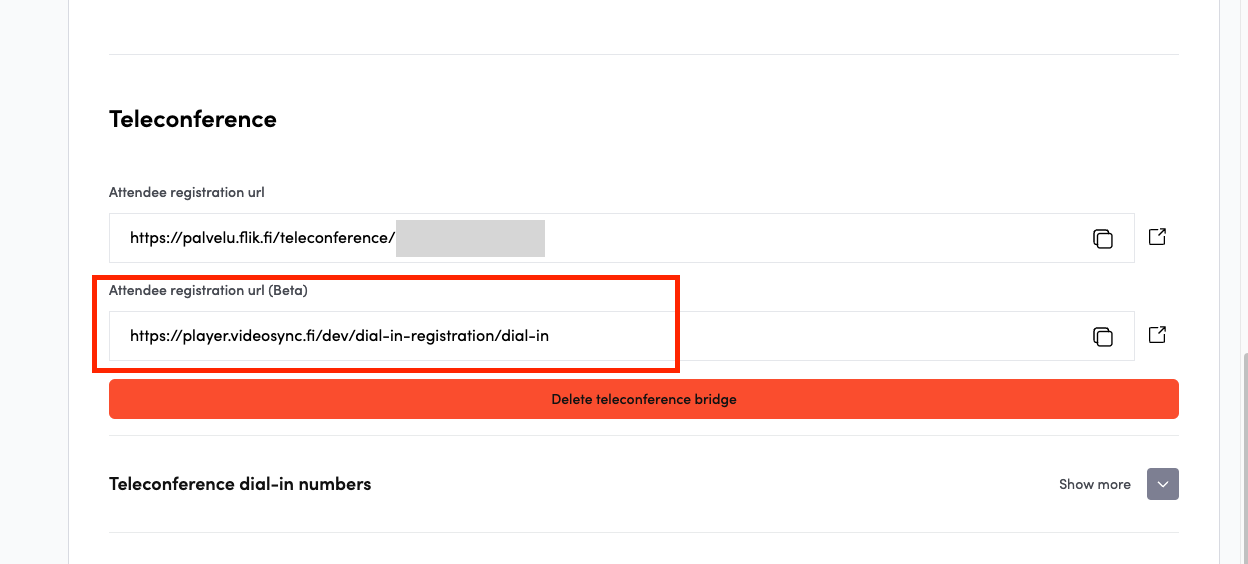
New attendee registration url (Live → Web-studio→ Teleconference, This is also visible under Advanced Settings -> Teleconference Settings -> Attendee Registration URL )
❗These settings are visible even if you haven’t created a web studio.
We have created a new Attendee Registration URL where participants can register for the teleconference. The new link can be found under Web Studio -> Teleconference as Attendee Registration URL Or Advanced Settings -> Teleconference Settings -> Attendee Registration URL..
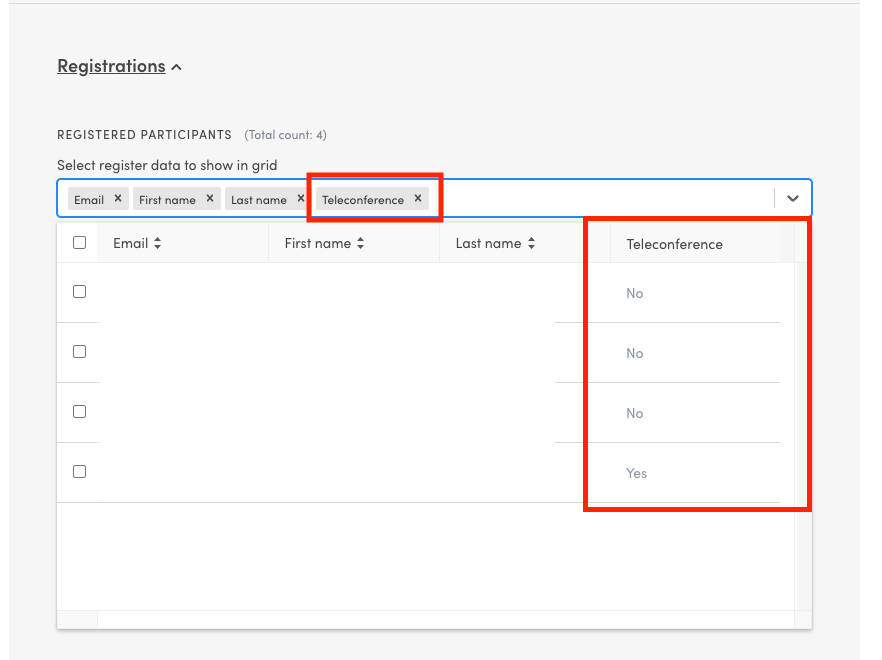
Dial-in registrations in the dashboard
Users registered through the new dial-in site also appear in the Videosync dashboard in the registration table, where they can be distinguished from the teleconference data.
New attendee registration page styles
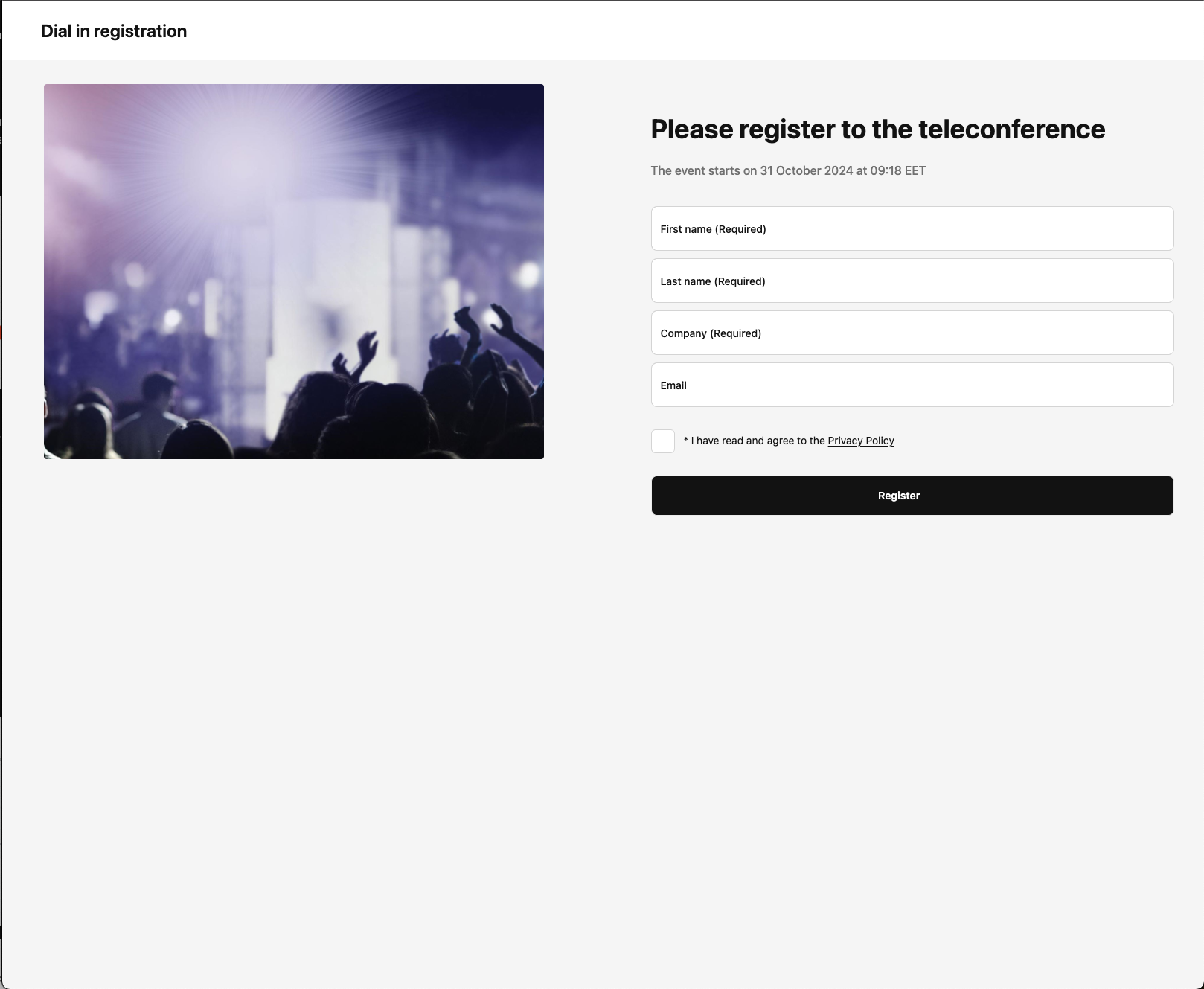
This dial-in site follows the background image settings from the regular registration (image and Registration section layout). The setting can be found under Registration -> Appearance. The header displays the event title by default and the logo if one is set. The Privacy Policy page follows the specific event’s privacy policy settings (Advanced settings -> Data compliance and privacy settings).
If the user sends an email during registration, the email sections can be edited in the normal registration settings. (The setting is located under Registration -> Email settings). The settings that the email sent by the Dial-in site follows include:
- email’s ‘from’ name
- header
- footer
- signature
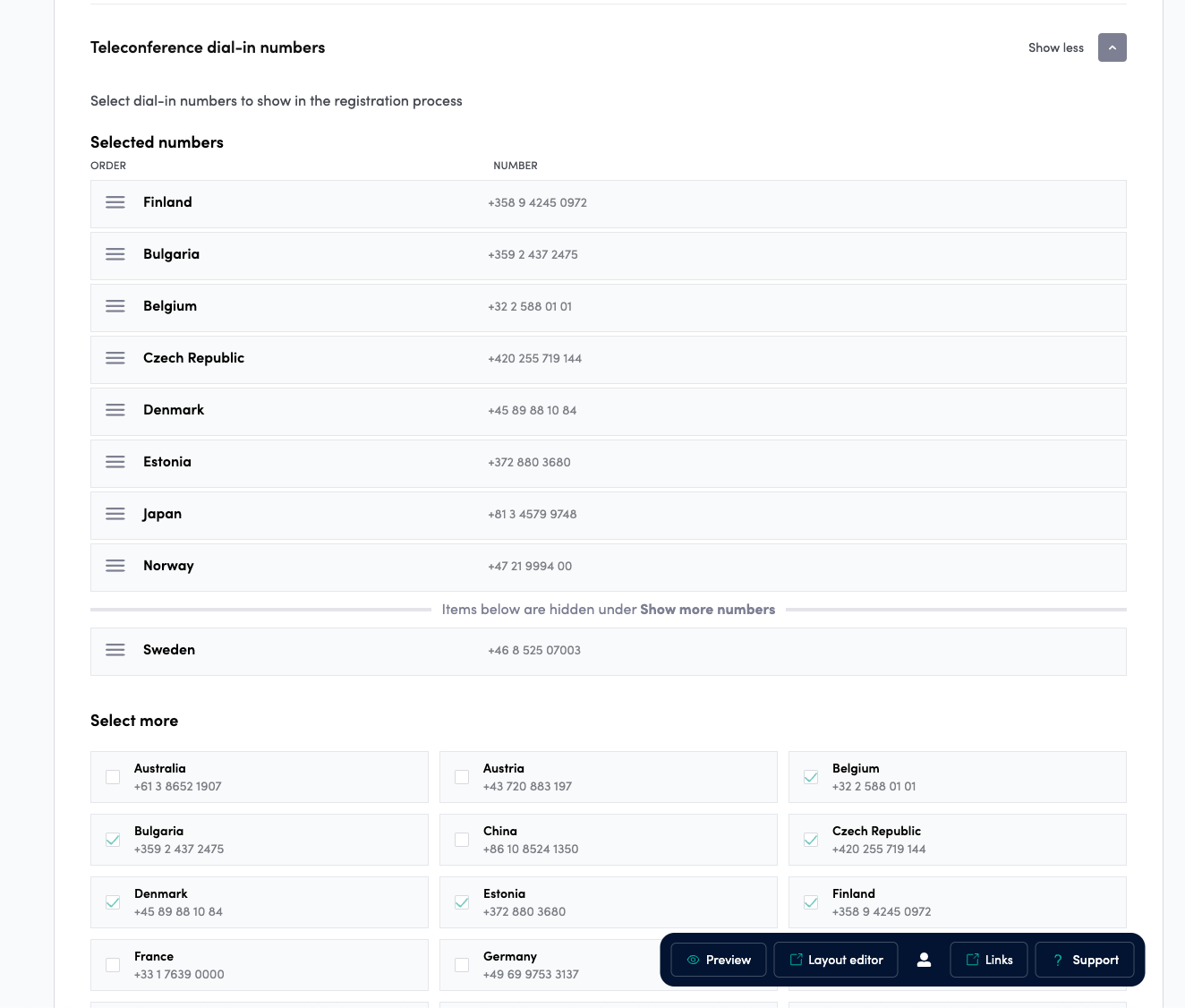
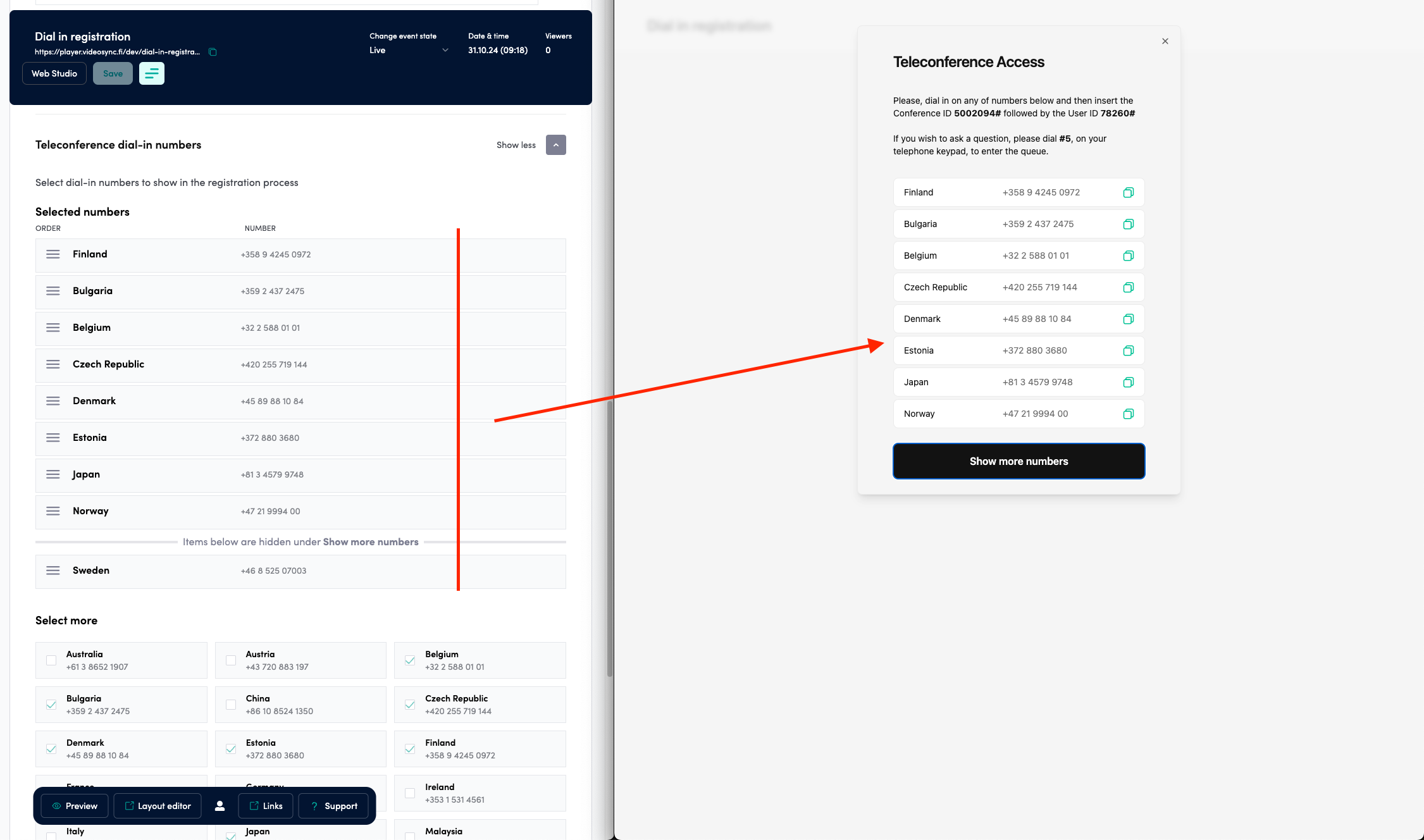
Teleconference dial-in numbers
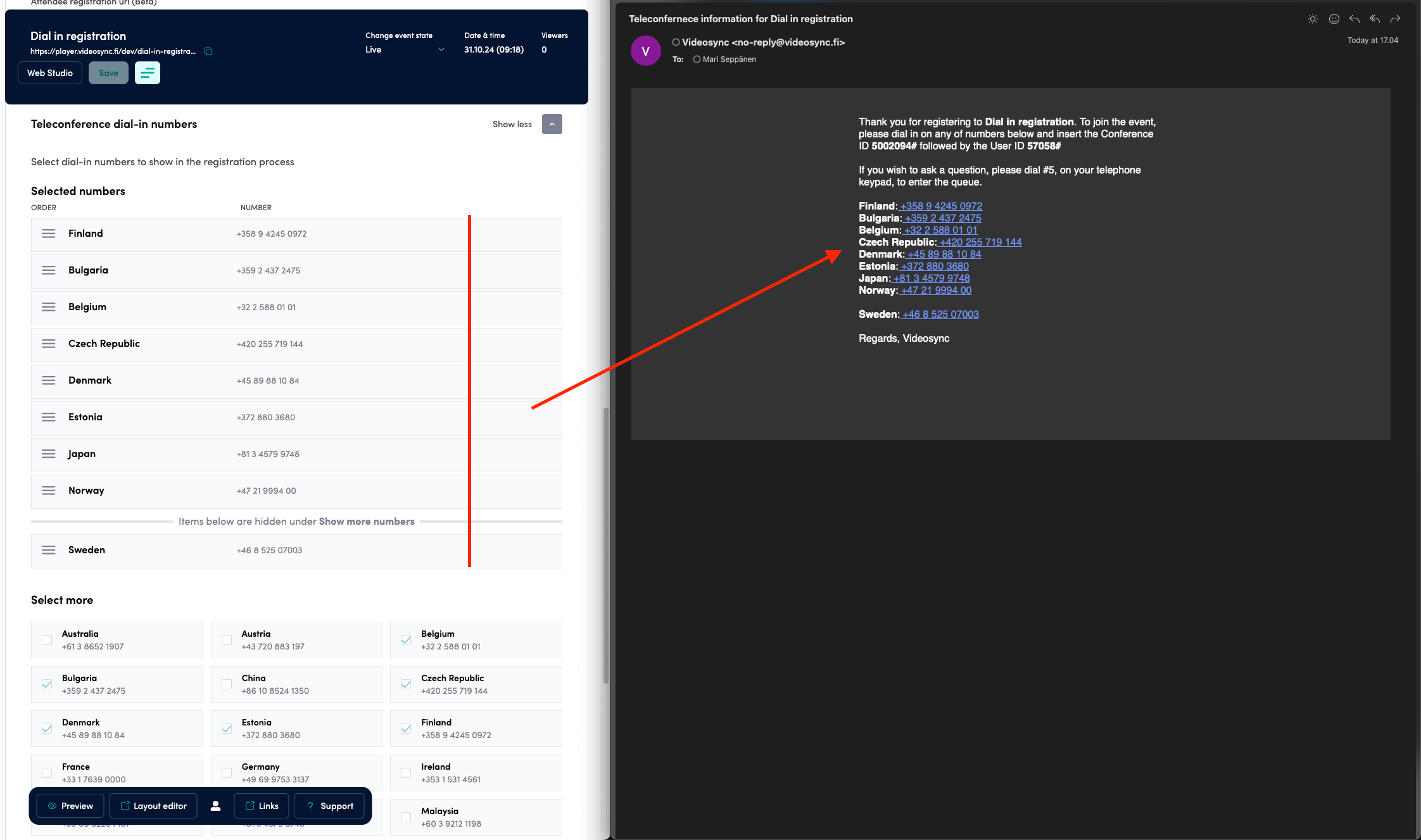
Below this section, you will also find options to organize, delete, and add teleconference numbers. These numbers will appear on the new /dial-in page and will be sent to participants’ emails when they register for the teleconference and have provided their email addresses.
The new teleconference email also follows the Videosync standard email’s from name, from email address, header, footer, and signature settings.
Firewall & VPN configuration for Videosync Teleconference
FAQ
Can't find what you're looking for?
Our AI assistant is here to help you find the information you need.