
Add different authentication options
Last updated: May 20, 2025
💡 Apologies, this instruction is still in progress. But we’re working on it and it will be soon available. Please contact support@videosync.fi if you need help in this topic.
By default Videosync events are public or available through registering to the event. In case you want to choose your audience more carefully, e.g. for an internal event, Videosync offers various Authentication methods.
You can access the Authentication settings from the following page: Build > Authentication
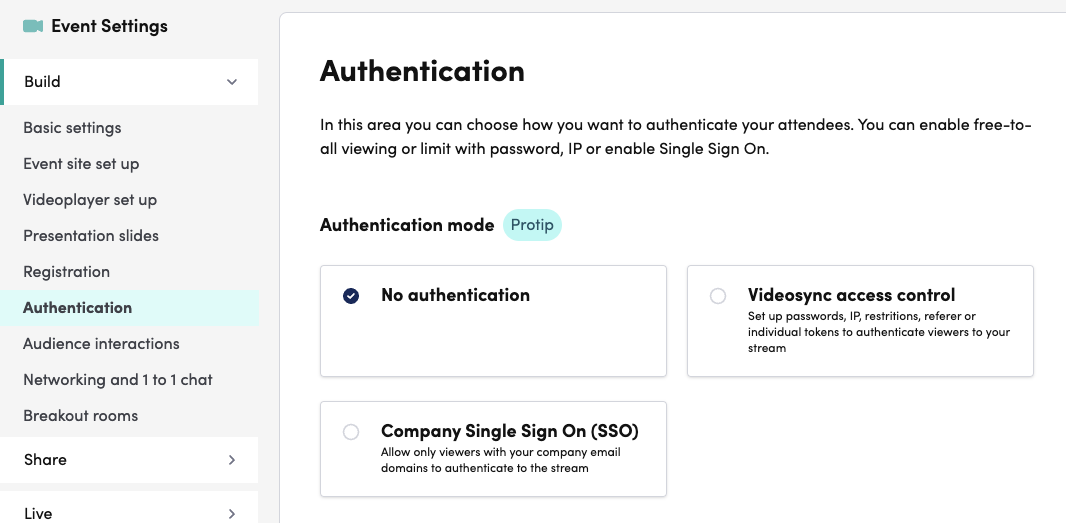
There are two main “modes” of Authentication and each have various options to choose from:
- Videosync access control
- Password protection
- Allowed IPs
- Tokens
- Referer protection
- Automatic redirect to URL
- Allow only one device per registered user
- Company Single Sign On (SSO)
- Office 365 (Azure) authentication
- Google authentication
- Allow access alternatively with password or token
- Require password after SSO login
Videosync access control
Firstly, you are able to set the general settings that affect all of the authentication methods.
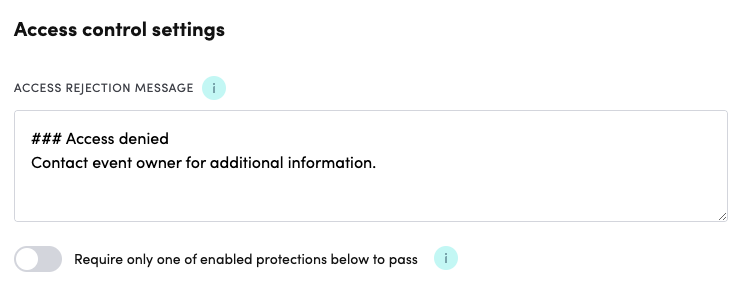
When participant tries to access the page without authentication, the Access rejection message will be shown.
The toggle “Require only one of the enabled protections below to pass” refers to having multiple different methods of Videosync access control enabled simultaneously but allowing the participant to access the event if one of the authentication requirements are met instead of all of them.
Password protection
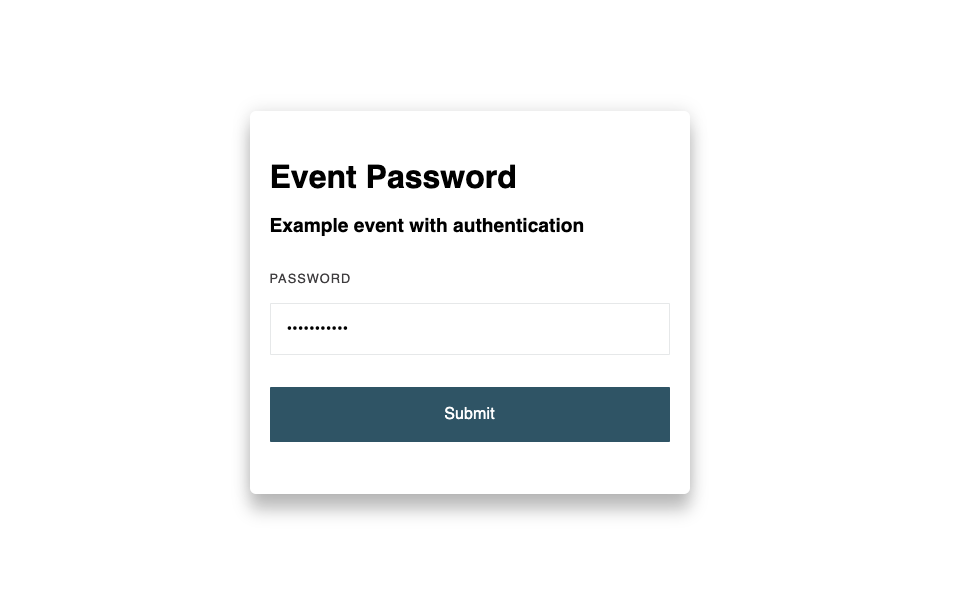
Enabling Password protection provides you a simple “login” page before entering the actual event site.
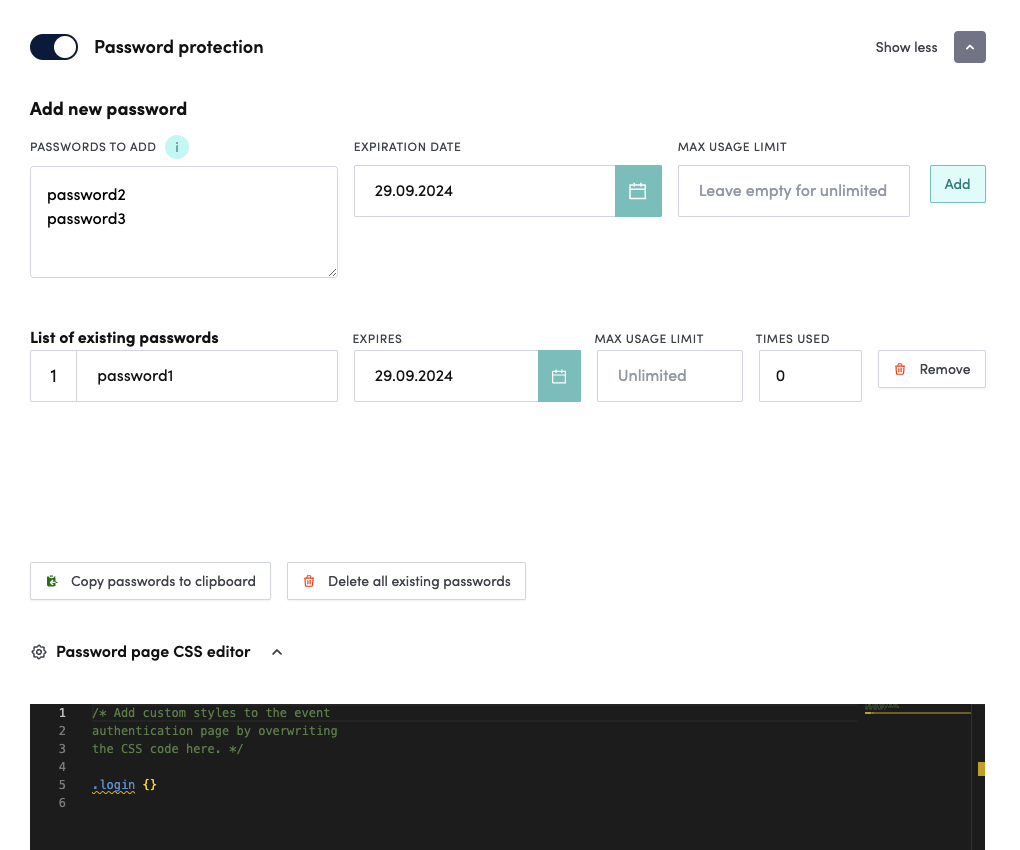
The first section “Add new password” allows you to add passwords of your choosing by typing them in the “Passwords to add” field, one password per line as pictured.
“Expiration date” allows you to set the last point of time the password will be valid for accessing the site. ”Max usage limit” field can be either left empty or filled in for setting the number of uses the password is valid for use. If you set it to 10, the password(s) will automatically deprecate after 10 “logins”.
“Add” button will add the password(s) to the “List of existing passwords”.
This list shows all of the existing passwords, their expiration date, usage limits and the number of times they have been used. All of the fields except “times used” are editable. Remove button allows you to remove a password thus making it invalid for future use.
Below the list there are two buttons “Copy passwords to clipboard” and “Delete all existing passwords”. They are both pretty self-explanatory and most useful in cases where there are hundreds of passwords to share/delete.
Finally, there is a “Password page CSS editor” that allows you to modify the default styles of the “login” page in case you are experienced in writing CSS code.
The login page looks like this by default:
Allowed IPs
Will be added soon!
Tokens
Will be added soon!
Referer protection
Will be added soon!
Automatic redirect to URL
Will be added soon!
Allow only one device per registered user
Will be added soon!
Company Single Sign On (SSO)
Will be added soon!
Office 365 (Azure) authentication
See:
Google authentication
Will be added soon!
Allow access alternatively with password or token
Will be added soon!
Require password after SSO login
Will be added soon!
Can't find what you're looking for?
Our AI assistant is here to help you find the information you need.