
How to enable chat in your event?
Last updated: May 13, 2025
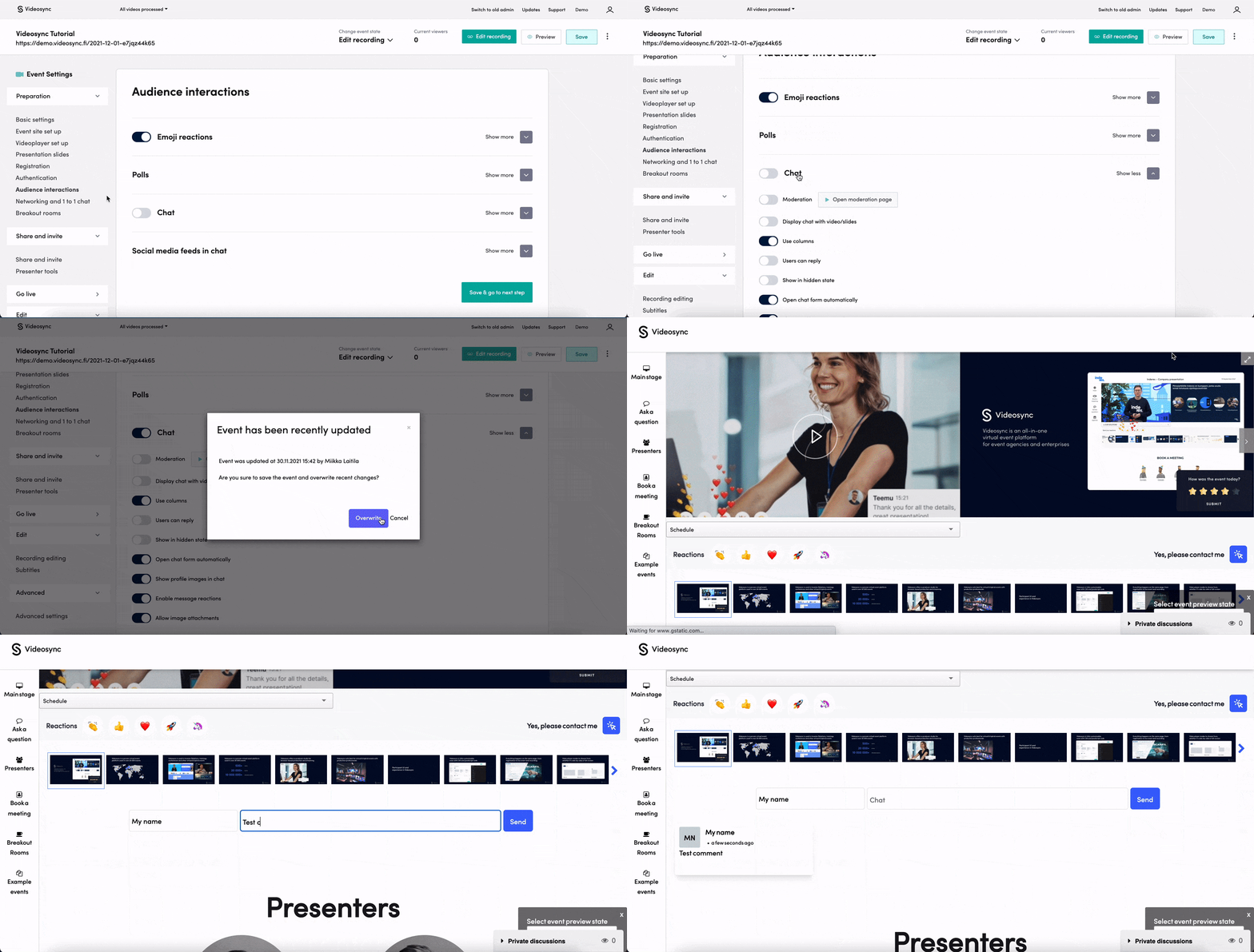
You can add a chat to your event site under Audience interactions. Enable Chat toggle to show chat on your event site.
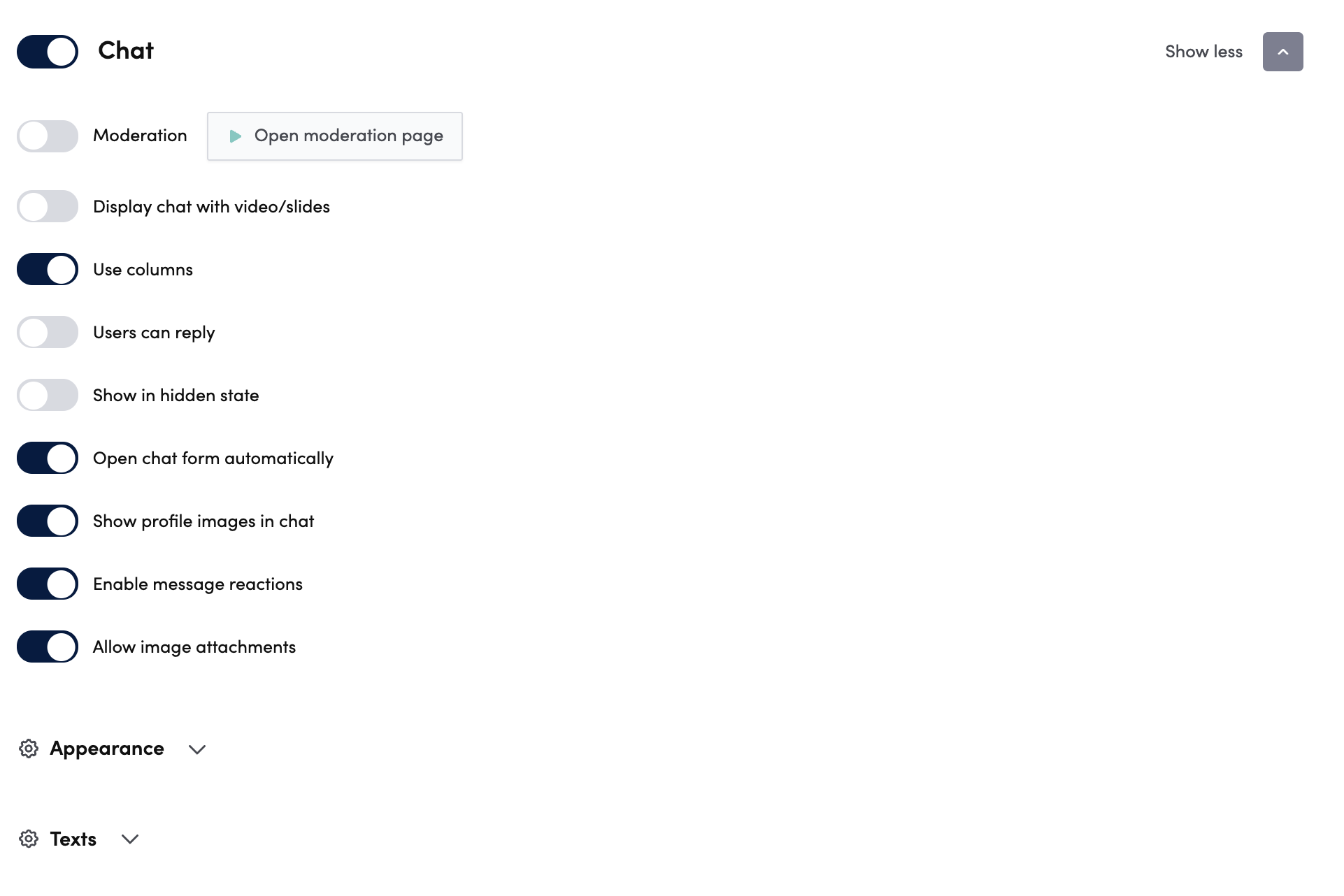
Options for customizing
Moderation
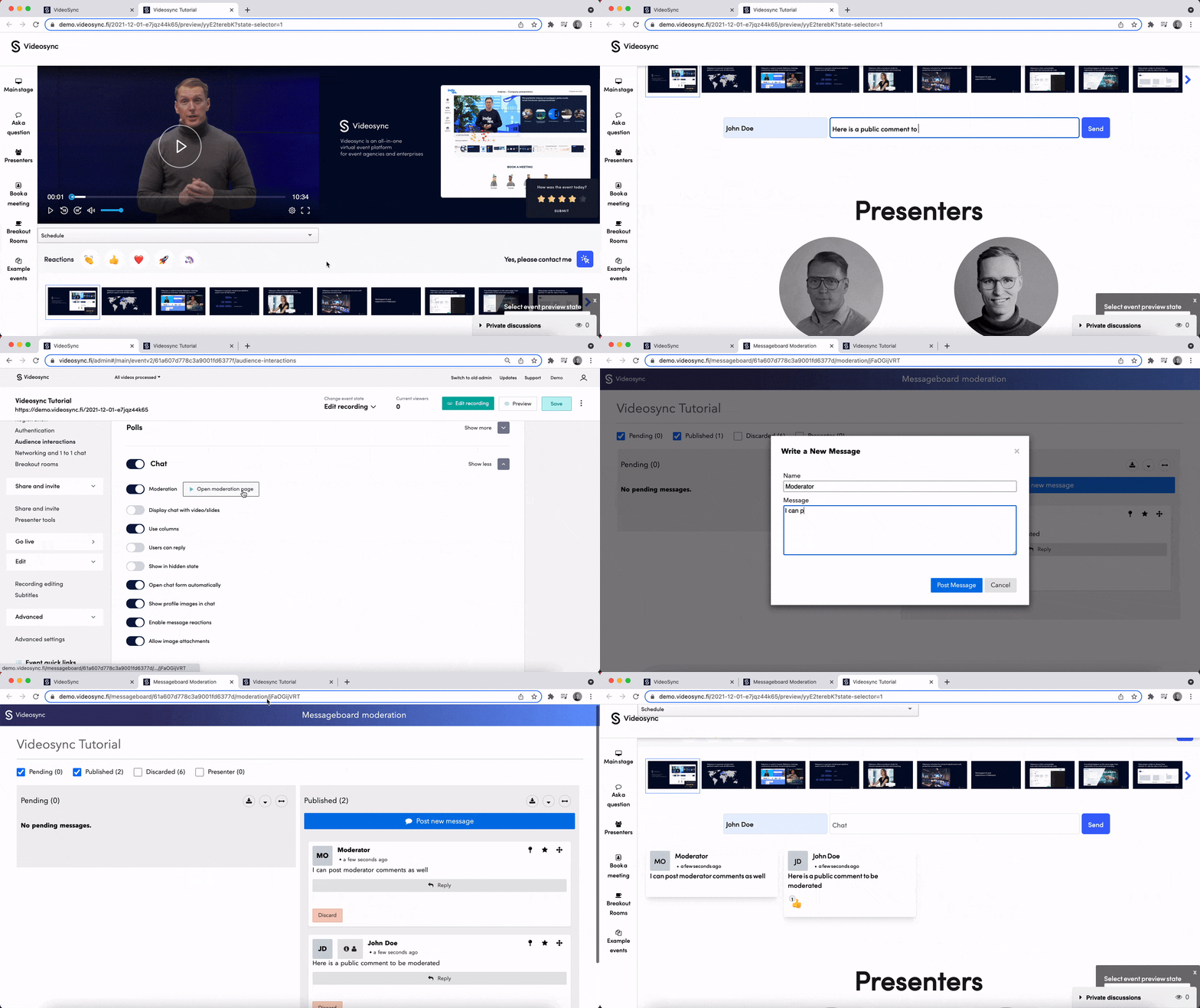
You can have a chat functionality with 1) open chat or 2) moderated chat.
-
Open chat: If you disable the moderation option, you’ll have an open chat. This means that all the comments sent by attendees are shown automatically to everyone on the event site.
-
Moderated chat: You can create a moderated chat, where you can control which messages are shown on the event site.
Display chat with video/slides
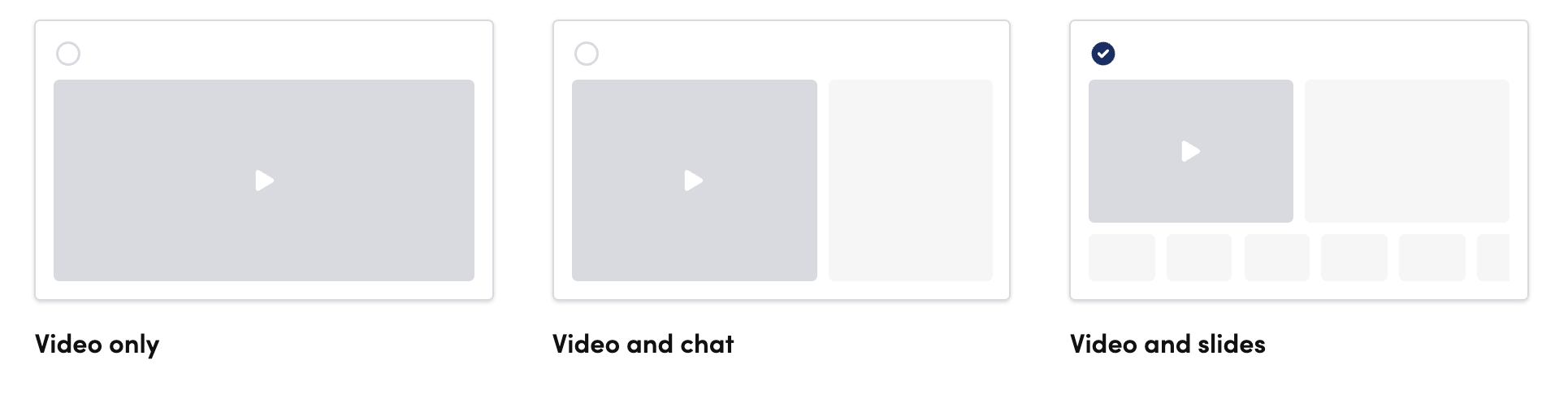
Enable this feature, if you want to have chat next to the Video and slides on their right side, not below. Usually this option is disabled and the chat is placed under the video and slides. If you’re not using slides, this is not relevant for you.
Use columns
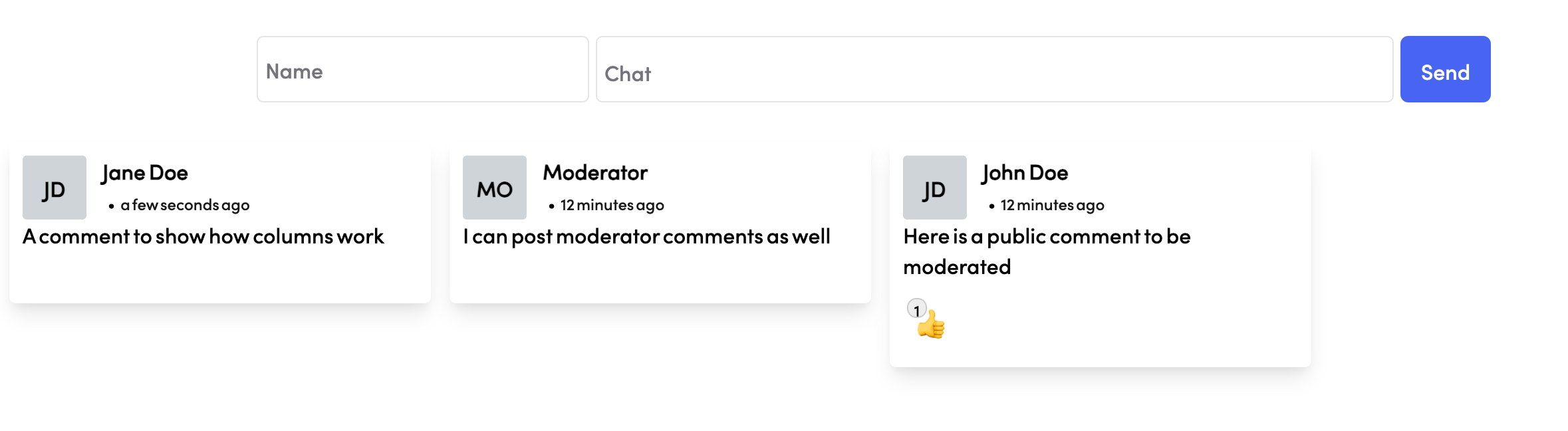
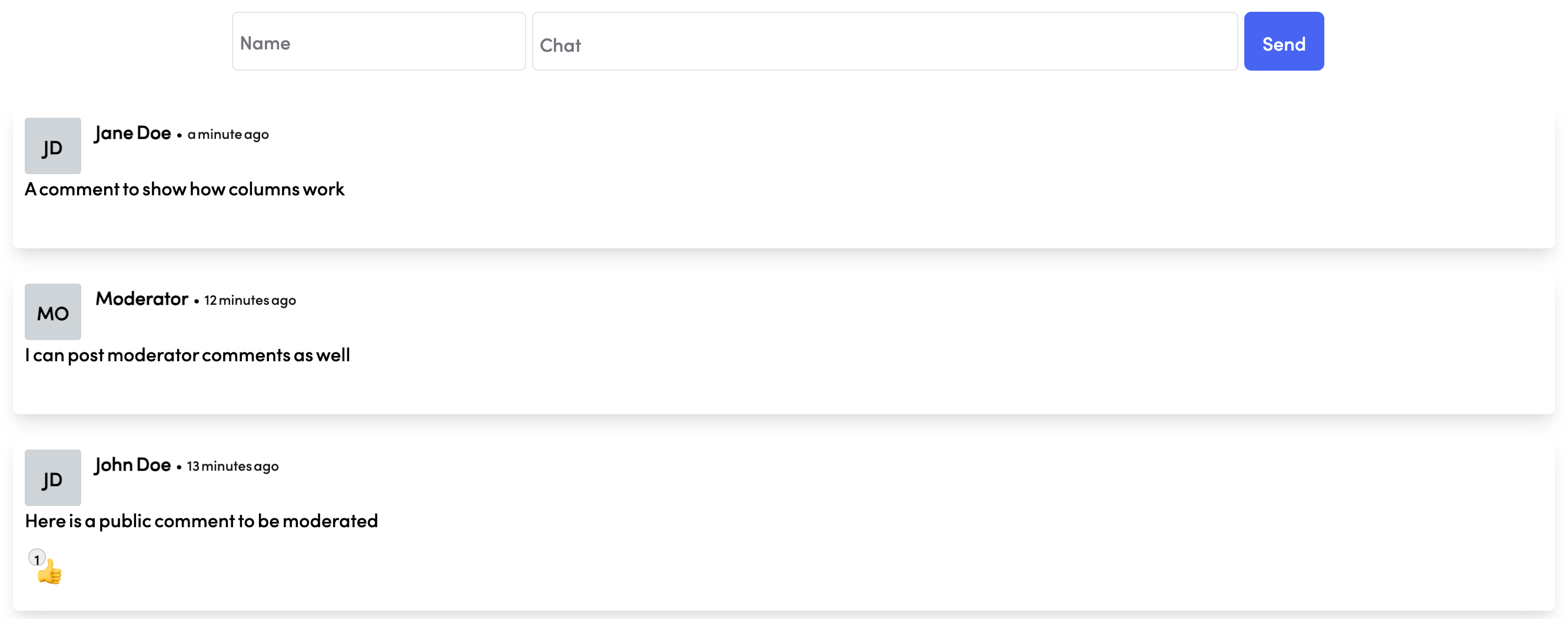
Enable this feature to have messages next to each other as a chat wall (left image) instead of a linear chat stream (right image). This way you can ensure a compact event site.
Users can reply
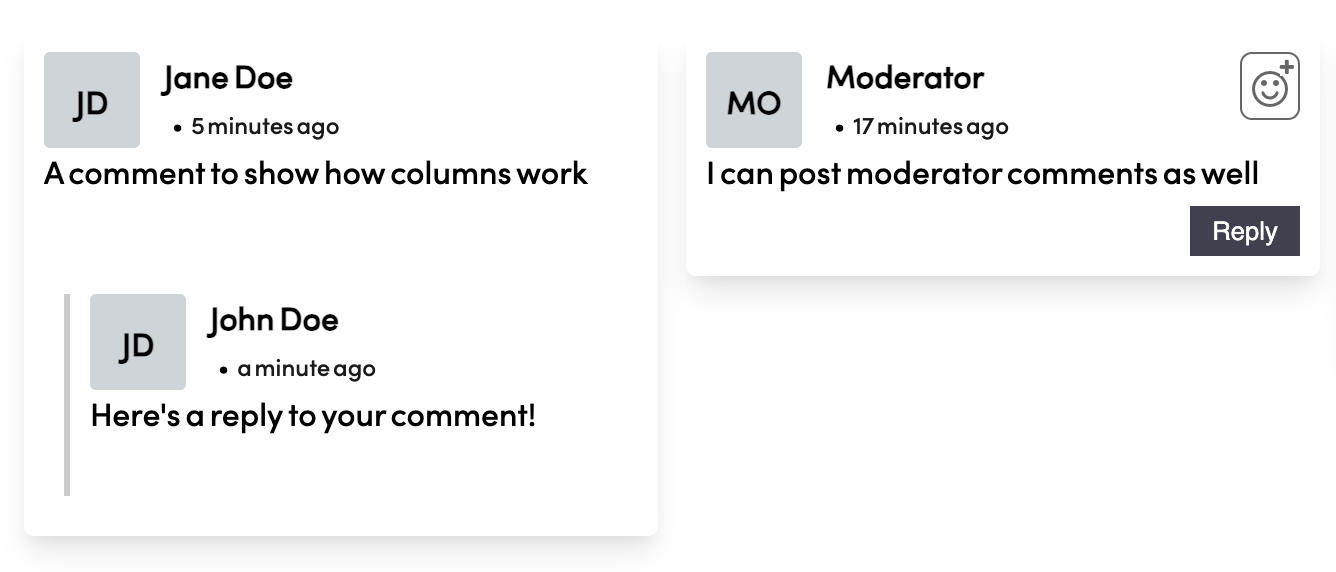
Allow users to reply to messages sent to the chat.
Show in hidden state
Enable this feature to allow seeing messages in the hidden event states:
- After registration before the live event starts
- After the live before the recording is shared
Open chat form automatically
Disable this, if you want to first let user to click before opening the chat.
Show profile images in chat
Enables showing profile images as small icons next to the sent message. If you have enabled profile pictures in registrations or LinkediIn registration, the profile images are shown here as well as in participant list.
Enable message reactions
Enable to allow reacting to sent messages. Attendees can react to messages by clicking the emoji icon on the right top corner of a message.
Allow image attachments
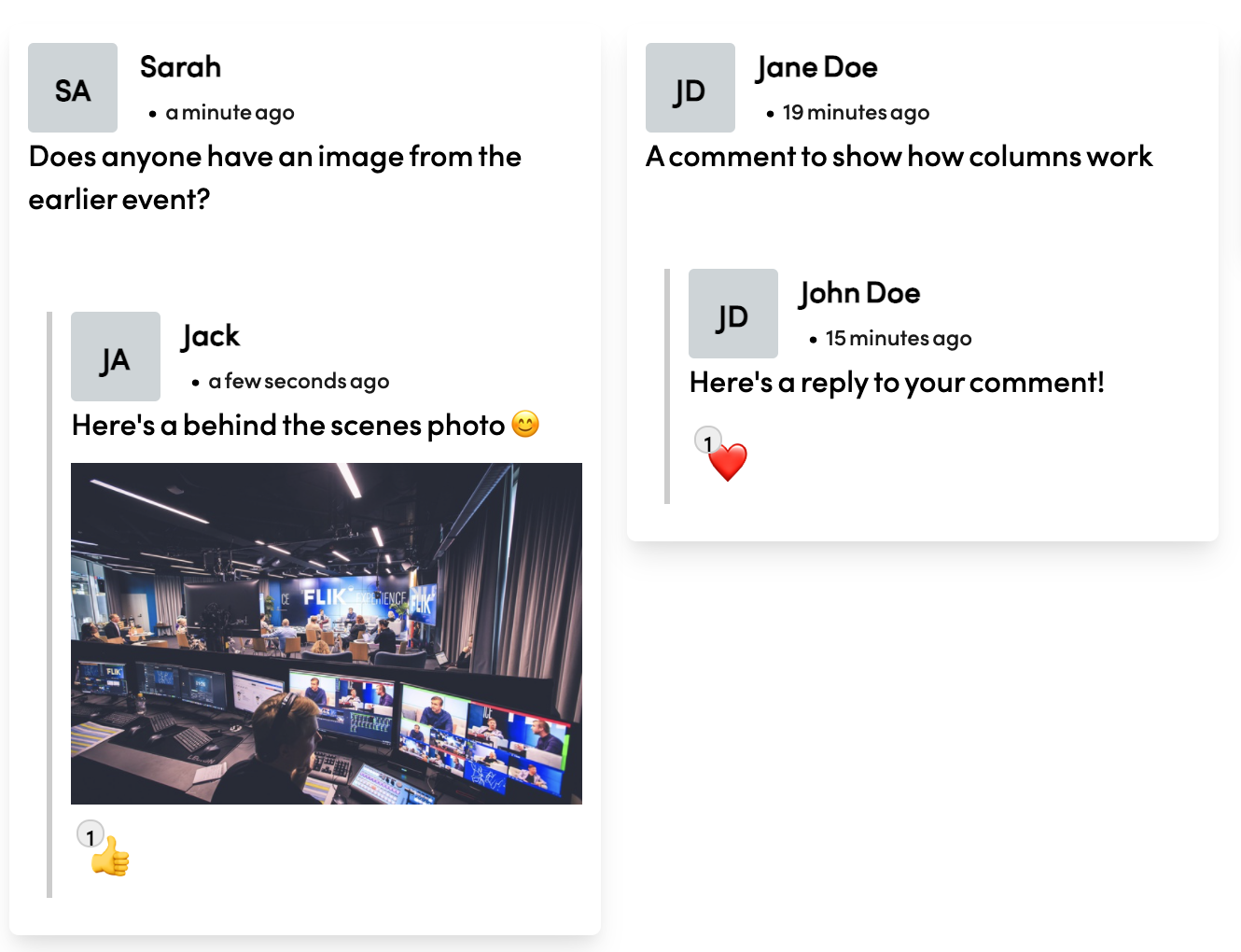
Enable to allow sending images in the chat. You can attach image in the top right corner of the chat box.
Appearance
In appearance, you can modify the appearance of your event site’s chat area, from font and background colors to shadows and margins. You can also use custom CSS code if you want to modify the area further
Texts
In texts, you can modify the titles, placeholders and button texts, as well as the response when you’ve submitted your message for moderation.
Can't find what you're looking for?
Our AI assistant is here to help you find the information you need.