
How to use Premiere (pre-recorded live)?
Last updated: October 2, 2025
💡 **Premiere is now in beta: Contact us at support@videosync.fi if you’re interested in to use it! **
Videosync Premiere lets your audience view and experience your pre-recorded video as a live event. Recording the actual presentation beforehand is handy, as you can focus on engaging with the audience. After the live, the recording will be instantly available as published recording.
Steps to create a Premiere event
-
First, create an event and set the event time for the desired premiere time. You can use ready events or create a new one. If you need help, you can check Create a new event with Videosync
-
When you have your video ready, go to Edit - Recording editing to select your recordings. You can add multiple videos to the recording. If you have a slide presentation or polls, you can sync them with the recording. For more information, check Editing and publishing a recording
-
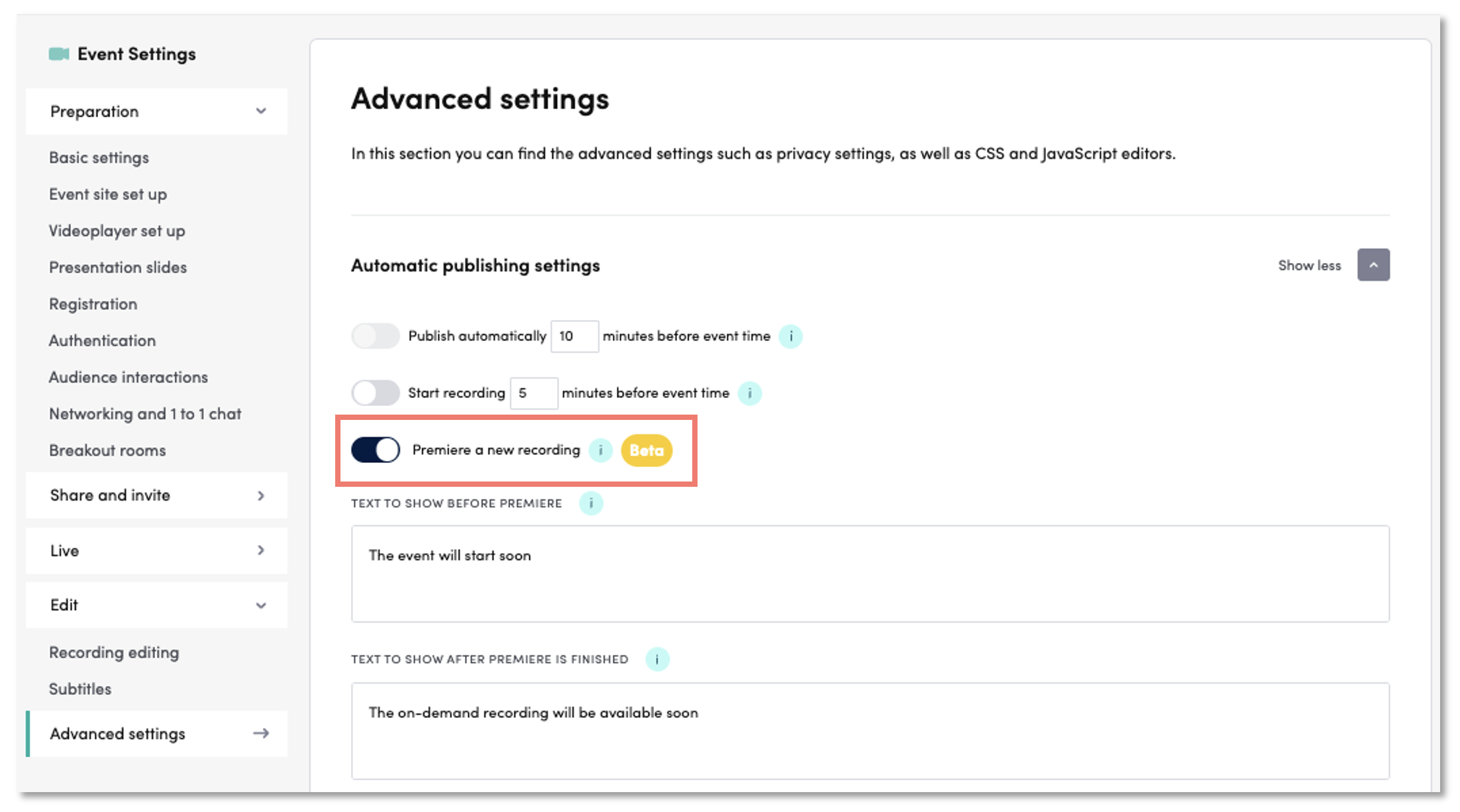
To create a Premiere, go to Advanced Settings - Automatic publishing settings - Premiere a new recording. Turn on the field to create a scheduled premiere for the event time. There you can also modify the texts your audience see before and after your live.
-
Change the Event State to Premiere to make sure that the uploaded & edited video is processed to multiple bitrates before the premiere starts.
-
Click Preview to explore how your event site will look before, during and after the live (premiere).
-
Currently you can only preview the “countdown” page. If you want to check how the video itself looks like, disable “Premiere a new recording” setting temporarily to see the recording on preview page.
-
Now your Premiere is ready to go.
What happens when you create a Premiere
Before your Premiere starts
- If you have enabled registration, your event site cannot be accessed without it.
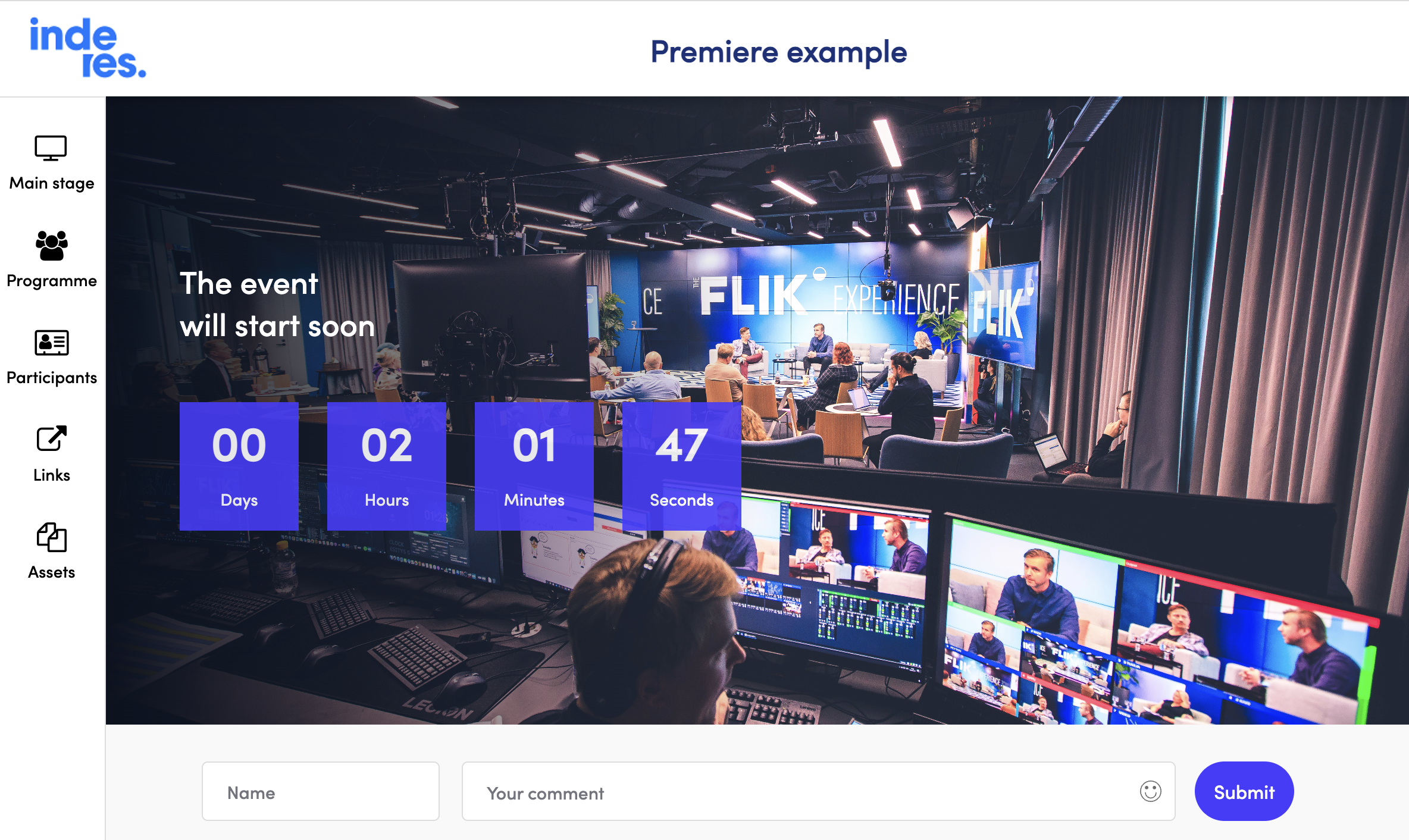
- On event page, your audience will see a time counter and text you’ve setup in Premiere settings. When event time is reached, the event page will go automatically live.
During your Premiere
-
Now your event is live: Your recording is streamed to the audience. You can focus on audience feedback and chat questions.
-
If you indexed slides or polls as in Editing and publishing a recording, those will be activated during the live After your Premiere
-
When your recording ends, the event site will automatically turn into published recording. Depending on your recording size, this might take a few minutes.
-
Now your event is available as recording for people who missed the Premiere.
Can't find what you're looking for?
Our AI assistant is here to help you find the information you need.