
How to control live event with Live control room?
Last updated: August 13, 2025
You can control your Live event in Videosync’s Live control room. Live control room is the place to control your live event.
You can access Live control room in the upper right corner of Videosync admin. Your event state needs to be Preparation, Share & Invite or Go live to access the control room.

Basics
On top of the tool, you can see a state selector. When event is in Pending mode, the stream is not visible to the audience on the event page. When you click Go live, your event site starts streaming your content.
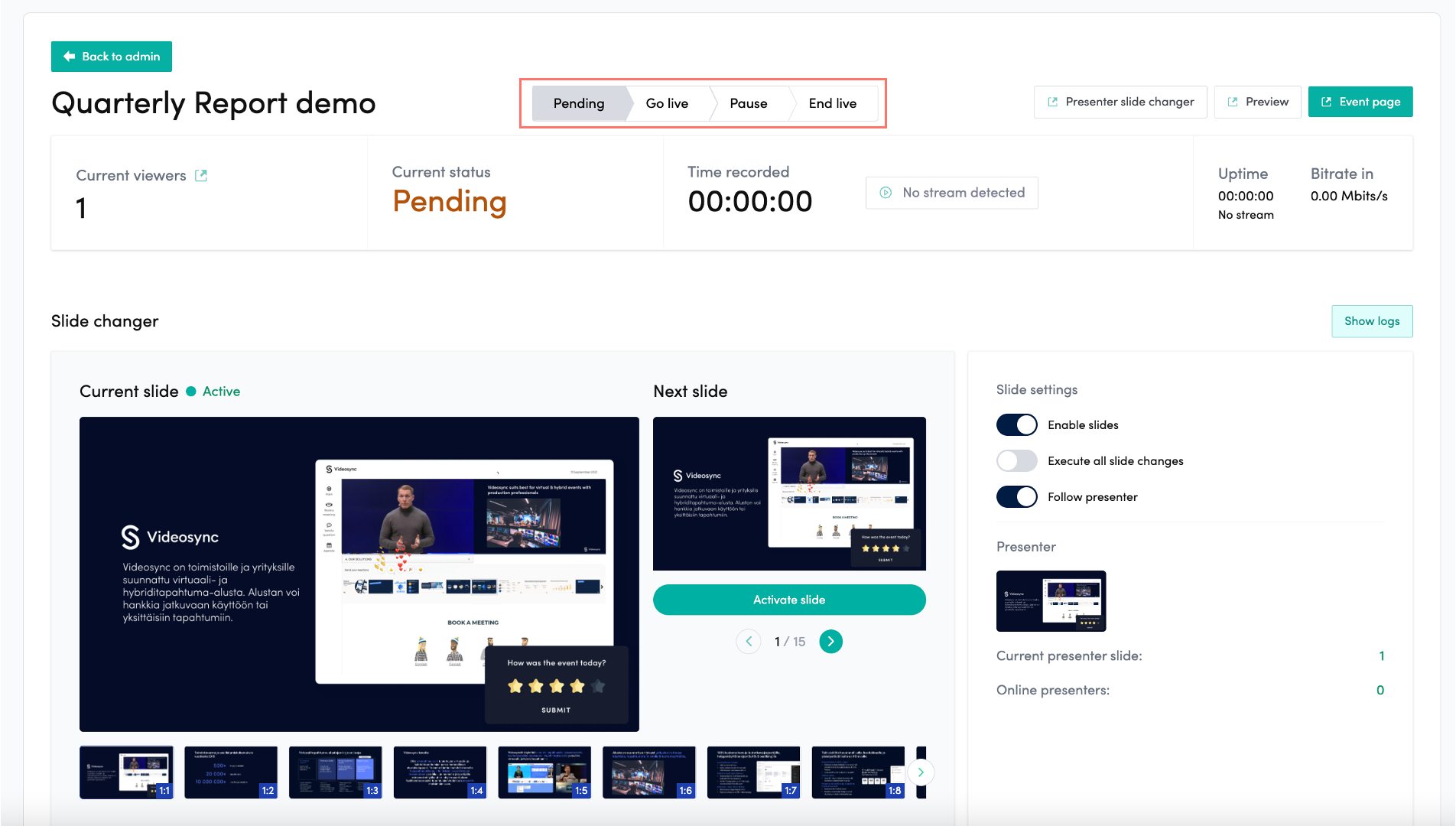
You’ll see Start recording below state selector when a stream is detected. If you forget to click record, there’s a prompt suggesting you to record when you go live.
On top right corner are quick links to event’s Preview, where you can see how the stream and event looks like, when you go live. Event page takes you to the public event site.
When your event is live and recording, the state looks like this.

Control your live
Below state selector you will find tools to control your slides, chat and polls
How to control slides during live
How to moderate chat and messages?
How to control polls and results during live?
Can't find what you're looking for?
Our AI assistant is here to help you find the information you need.