
Adding remote speakers to your event
Last updated: May 20, 2025
Before the event: Set up the web studio
Most convenient way to take in remote speakers is using the webstudio solution. See Go live with webstudio for steps to create the webstudio if you are not familiar with the process of running webstudio events.
Send studio link to the remote speakers
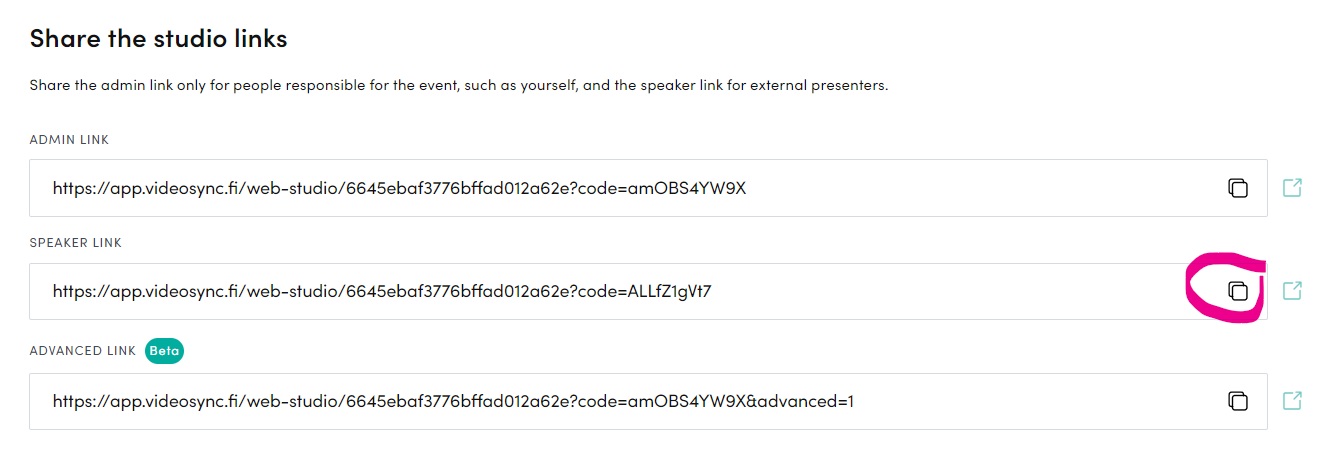
Copy the Speaker link from Live → Webstudio section, and send it to all guest speakers. Once they access the link, their image and audio can be used in the broadcast, and they also have opportunity to switch slides and read the chat.
⚠️ Note that if a remote speaker enters webstudio during your live event, their video and audio is visible and audible in the broadcast, if they have enables their camera and mic when entering the webstudio. If you have remote speakers joining in during the live, it is recommended that they are guided in advance to enter the studio without their camera and microphone on.
Can't find what you're looking for?
Our AI assistant is here to help you find the information you need.