
Working with event states
Last updated: September 2, 2025
Videosync differs from some other platforms in a sense that from attendee perspective, everything happens in the same base URL, such as https://demo.videosync.fi/introduction. This facilitates social media activities and invites – but on the other side of the coin, from admin perspective, it is important that different states of the event are understood and correctly used.
So, event states are used to control what the audience sees when they enter the event URL, for example https://demo.videosync.fi/introduction
Previewing event states
For a virtual event admin, it is important to have control - to know how things are going to look, before things happen. For this, before diving into the actual event states, a few words about how the admin can preview how the different states look.
💡 To enter the preview mode, just click on the Preview link in the event edit top bar.

Then, on the preview mode, select the state that you want to preview, from the navigation element in the bottom-left corner of the event site - and you will see what your audience would see if the event would be in the chosen state.
Working with event states
💡 Event state is changed from the event edit top bar, Change event state menu. Note that you need to click Save before change takes effect.
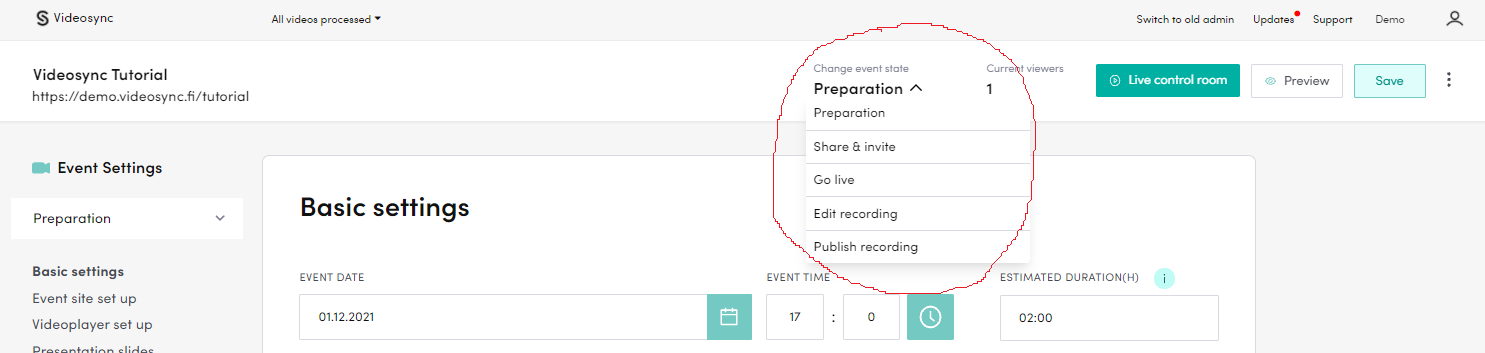
Working with an event, there is five different states to consider:
- Build (was earlier “Preparation”) - When event is in Preparation state, the url is not publicly visible. So basically, this is a sandbox where you can set-up and play around with the event settings, without needing to worry how the changes might affect your audience experience. It is recommended that you finish the event settings before proceeding to the next state.
- Share - Let’s assume that you are ready with your event settings and site content and you want to start inviting audience to the event, and sharing the event link in your web channels, social media etc. Before starting the promotion, you’d need to set the state to Share and invite. Doing that, the event site will be publicly visible in the url that you have set for the event.
- Live - Live state removes the videoplayer placeholder and replaces it with the live video / slide -player. So remember to make sure you have some live content up and running before changing into this state. This state change can only be done in the live tool. For instructions on how to go live, please visit How to control your live event.
- Edit recording - This is the state when your live event has finished, and the live player is being replaced with the recording placeholder. It’s a handy state, you can do the edits to your recording, while your audience sees only the placeholder. For instructions about how to set-up the placeholders, please visit Setting up your event site content
- Publish recording - When you are done with the recording editing, and you want to publish it to the audience, just change the state to Publish recording.
FAQ
Users are reporting that autoplay isn’t working when I switch to live mode. What is wrong?
Autoplay is really limited nowadays. It basically works only if you have previously visited that site/domain and clicked something. It is safe to assume that autoplay is always blocked when new user joins Videosync event.
Can't find what you're looking for?
Our AI assistant is here to help you find the information you need.